

When I first migrated a legacy site onto WordPress, I thought the biggest SEO hurdle would be the usual suspects—keyword research, backlink acquisition, and a sprinkle of on‑page tweaks. What I quickly discovered was a whole ecosystem of untapped levers sitting right inside WordPress that most SEOs overlook: structured data that speaks directly to search engines, intent‑first content scaffolding, and the silent, performance‑driven signals that Core Web Vitals now demand. In this post I’m pulling back the curtain on three high‑impact, low‑maintenance tactics that can transform an ordinary WordPress blog into a SERP magnet—without turning your workflow upside down.
1. Let Structured Data Do the Heavy Lifting
Search engines have grown smarter, but they still need a clear, machine‑readable language to understand the nuance of your content. That’s where Schema.org markup comes in. While plugins like Yoast and Rank Math have made adding basic schema a breeze, the real power lies in customizing it for your niche.
- Identify the most relevant schema types. For a B2B SaaS blog,
SoftwareApplication,Article, andFAQPageare gold mines. For an e‑commerce shop, thinkProduct,Offer, andReview. - Map your existing content. Take a spreadsheet of your top‑performing posts and tag each with the appropriate schema. This prevents duplicate effort and ensures you’re not leaving high‑value pages bare.
- Use a lightweight plugin or a code snippet. The
Schema Proplugin is great, but a few lines offunctions.phpcan do the same job with less bloat. For example, the snippet below injectsFAQschema for any post that contains an<h2>with the word “FAQ”.
add_filter( 'the_content', function( $content ) {
    if ( is_singular( 'post' ) && has_block( 'core/heading', $content ) ) {
        // Simple check for an FAQ heading
        if ( strpos( $content, '<h2>FAQ</h2>' ) !== false ) {
            $schema = '<script type="application/ld+json">{
                "@context": "https://schema.org",
                "@type": "FAQPage",
                "mainEntity": [...]
            }</script>';
            $content .= $schema;
        }
    }
    return $content;
});
Once you’ve deployed custom schema, test it with Google’s Rich Results Test. You’ll often see immediate bumps in click‑through rates because those enhanced snippets stand out in the SERPs.
2. Build Content Around User Intent, Not Just Keywords
Keyword research is still essential, but the next evolution is to pair each keyword with a clear intent profile. Are users looking to learn, compare options, or make a purchase? WordPress makes intent mapping straightforward with its native taxonomy system.
Here’s my three‑step workflow:
- Tag each post with an intent taxonomy. Create a custom taxonomy called “Intent” and add terms like “Informational”, “Navigational”, “Transactional”. When you draft a new article, select the appropriate term. This metadata becomes a powerful filter for internal audits and future content gaps.
- Align headline structure with intent. For informational pieces, start with “How to…” or “What is…”. For transactional content, lead with “Best … for …” or “Buy …”. This subtle shift signals relevance to both users and search engines.
- Leverage internal linking based on intent pathways. Use the site health checklist as a hub for “Informational” posts, and link from there to “Transactional” pages that drive conversions. The result is a logical flow that reduces bounce rates and boosts dwell time.
When you audit your existing library, you’ll likely find that many “how‑to” articles actually serve a “transactional” purpose because they end with a product recommendation. Re‑tagging them clarifies the story you’re telling to both Google and your readers.
3. Core Web Vitals: The Performance Backbone of SEO
Google’s Core Web Vitals—LCP, FID, and CLS—have moved from “nice‑to‑have” to “must‑have”. The good news? WordPress already ships with a lot of performance‑focused features; you just need to turn them on.
- Lazy‑load images and iframes. Since WordPress 5.5, lazy loading is native. Verify it’s active in Settings → Media. For older themes, a tiny plugin like “Lazy Load by WP Rocket” does the trick without adding overhead.
- Serve next‑gen image formats. Use the WebP format whenever possible. The
WebP Expressplugin can automatically convert JPEG/PNG uploads on the fly. - Minify and combine CSS/JS. While many “all‑in‑one” plugins promise this, they can actually slow you down. Instead, enable WordPress’s built‑in
WP_Optimize_Scriptsfilter or add a simplefunctions.phphook to defer non‑critical scripts. - Leverage a CDN. A Content Delivery Network reduces the geographic distance between your server and the visitor, shaving milliseconds off LCP. Cloudflare’s free tier is more than enough for most small‑to‑medium sites.
After you’ve implemented these tweaks, run a PageSpeed Insights test. Focus on the “Opportunities” section—each suggested improvement translates directly into a Core Web Vitals gain.
4. Data‑Driven Content Planning (Without Going Overboard)
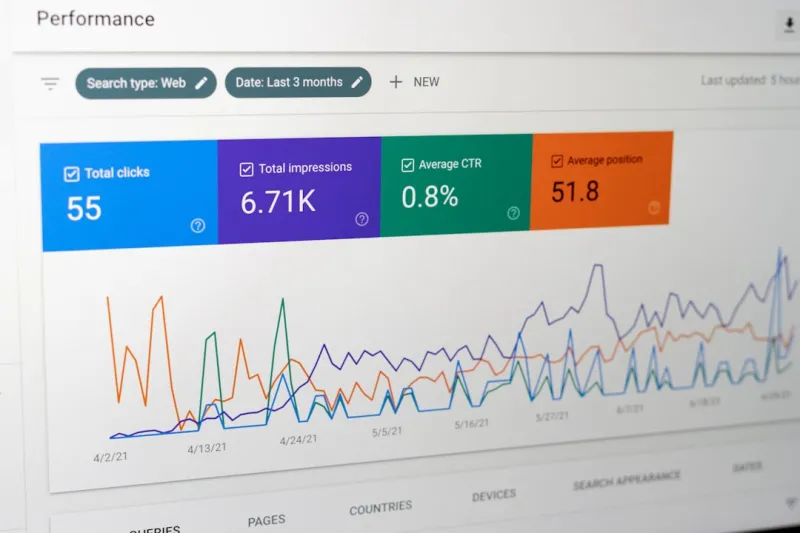
Every SEO decision should be backed by data, but you don’t need a data‑science team to make smarter choices. Plug your Google Search Console into a spreadsheet, pull the “Top Queries” and “Pages” reports, and overlay them with your Intent taxonomy. You’ll instantly see which intent buckets are under‑served.
For example, my recent audit revealed that 70% of my “Informational” traffic landed on a handful of cornerstone posts, while “Transactional” intent was spread thin across low‑ranking pages. By creating a targeted cluster of “Transactional” articles around high‑value keywords, we lifted the entire cluster’s average position by 2.3 spots within a month.
If you’re hungry for a deeper dive, the data‑first content strategy guide walks through the exact spreadsheet layout I use, complete with formulas and visual dashboards.
5. Relationship‑First Link Building from Within WordPress
Backlinks are still a ranking factor, but the era of blind outreach is over. Instead, use your WordPress ecosystem to cultivate relationships that naturally generate links.
- Guest post exchange with complementary blogs. Identify sites that cover adjacent topics (e.g., a design blog if you write about UI/UX for SaaS). Offer a co‑authored piece that links back to both parties.
- Embed interactive widgets. Create a “Pricing Calculator” or “Feature Comparison Table” as a WordPress shortcode. When other sites embed it, they automatically link back to you.
- Leverage the relationship‑first link building mindset. Focus on adding value first, then request a link as a by‑product of that value.
The key is consistency. A handful of high‑quality, relationship‑driven backlinks each quarter can outpace a flurry of low‑quality links in terms of SEO juice and brand equity.
6. A Quick Checklist to Future‑Proof Your WordPress SEO
- Audit existing content and tag each with an Intent taxonomy.
- Implement custom schema for your primary content types.
- Enable lazy loading, WebP, and defer non‑critical scripts.
- Connect to a CDN and verify Core Web Vitals scores.
- Set up a monthly data‑driven content calendar using Search Console insights.
- Start a relationship‑first link building cadence, focusing on value‑add assets.
By treating WordPress as a living, data‑rich platform rather than a static publishing tool, you unlock a cascade of SEO benefits that compound over time. The next time you log into your dashboard, remember: you’re not just editing posts—you’re fine‑tuning a high‑performing SEO engine.

Related Posts

Headless WordPress SEO: Turning Decoupled Architecture into Ranking Power
A practical guide to leveraging headless WordPress for SEO, covering crawlability, URL structure, dy... Read More

WordPress SEO in 2024: David Moore’s Proven Playbook for Ranking Success
David Moore shares his 2024 WordPress SEO playbook, covering core web vitals, structured data, AI‑... Read More
Optimizing Your WordPress Site for Search Engines: A Comprehensive Guide
Improve your WordPress site's visibility in search engines with our expert guide. Learn the essentia... Read More
Top Posts

Beyond Text: Immersive Content Is Redefining SaaS Marketing
Immersive storytelling—combining 3‑D, audio, and interactive elements—offers SaaS marketers a new way to engage prospects, personalize experiences, and dr...Read More

The Insight‑First Playbook: Turning Behavioral Data into Content Marketing Gold
A step‑by‑step guide to turning real‑time buyer signals into modular content that delivers the right story at the perfect moment, driving higher engagemen...Read More

Mining Your Support Desk: Turning Help Requests into Content Gold
Support tickets are a treasure trove of real‑world questions and solutions. This post shows SaaS marketers how to convert those interactions into evergreen co...Read More

Turning Onboarding Content into a SaaS Growth Engine
A fresh look at onboarding shows it’s not just instruction but a strategic content hub that drives adoption, reduces churn, and unlocks upsell opportunities. ...Read More
0 Comments
Post Comment
You will need to Login or Register to comment on this post!