
When most SaaS marketers think about on‑page SEO, the mind immediately jumps to the classic trio: landing pages, blog posts, and feature overviews. What often slips through the cracks are the knowledge‑base articles that sit behind a login wall or a simple help center. These pages are goldmines of long‑tail search intent, high‑value keywords, and trust signals that can drive qualified traffic while simultaneously reducing support costs. In this post I’ll walk you through a systematic approach to transform your SaaS knowledge base into an SEO powerhouse, without sacrificing the user experience that your customers rely on.
Why Knowledge‑Base Content Deserves On‑Page Attention
Support queries are some of the most specific searches on the web. A user typing “how to reset two‑factor authentication on AcmeCRM” is clearly further down the funnel than someone searching “best CRM for small businesses”. If you can capture that intent on a public‑facing help article, you not only attract highly qualified visitors but also pre‑emptively answer a question that would otherwise land in a support ticket.
- Long‑tail relevance: Help articles naturally align with niche queries that have low competition but high conversion potential.
- Authority building: Consistently providing accurate, detailed answers signals expertise to both users and search engines.
- Support cost reduction: When users find the answer on Google, they’re less likely to submit a ticket, freeing up your support team.
Despite these benefits, knowledge bases are frequently overlooked in SEO roadmaps. The reasons are simple: they’re often behind authentication, they’re written for internal teams, and they lack the typical SEO scaffolding (title tags, meta descriptions, internal linking). Let’s change that.
Step 1: Audit Existing Help Content for Search Potential
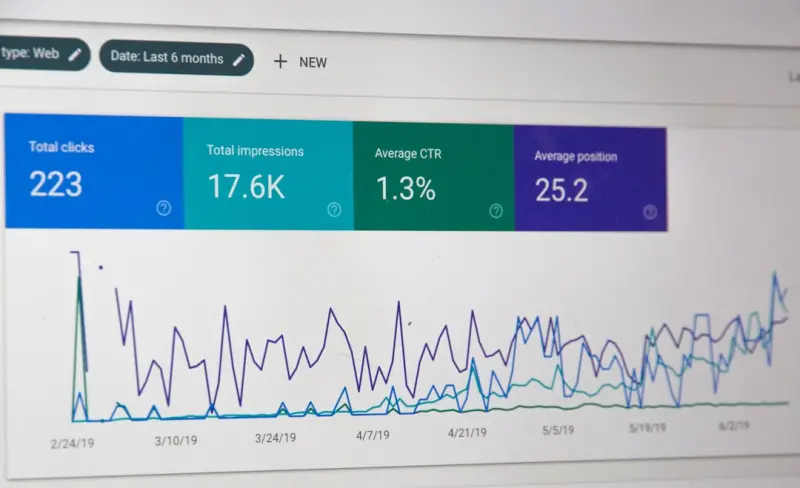
Start with a data‑driven audit. Pull a list of every help article URL and match it against your site’s search console queries. Identify the queries that already generate impressions but have low click‑through rates (CTR). Those are low‑hanging fruit—your content is already visible; it just needs a stronger on‑page signal to entice clicks.
For articles that receive no impressions, run keyword research focused on support‑type queries. Tools like AnswerThePublic, AlsoAsked, and even the “People also ask” box in Google can surface the exact phrasing users employ when looking for solutions. Compile these keywords in a spreadsheet, then map them to the most relevant existing article or flag them for new content creation.
Step 2: Craft SEO‑Friendly Titles and Meta Descriptions
Even though help articles aim to be concise, they still need compelling title tags (≈60 characters) and meta descriptions (≈150 characters). Treat the title as the headline a user would see in search results, not just the H1 on the page. Include the primary keyword near the beginning and add a clear benefit.
Example:
- Title tag: “Reset Two‑Factor Authentication in AcmeCRM – Step‑by‑Step Guide”
- Meta description: “Quickly reset two‑factor authentication in AcmeCRM with our easy visual guide. Follow 3 simple steps and secure your account today.”
Notice the blend of keyword, action verb, and value proposition. This approach improves CTR, which in turn can boost rankings.
Step 3: Optimize the On‑Page Structure for Both Humans and Crawlers
Help articles are traditionally formatted as long paragraphs or bullet lists. To make them SEO‑friendly, adopt a clear hierarchy:
- H2 headings: Break the content into logical sections (e.g., “Prerequisites”, “Step 1: Access Settings”, “Step 2: Disable 2FA”).
- H3 subheadings: Use for sub‑steps or optional tips.
- Ordered lists: Ideal for step‑by‑step instructions; they also signal to search engines that you’re delivering a procedural answer.
Don’t forget to sprinkle the primary and secondary keywords naturally throughout headings and body copy. Over‑optimization can look spammy, so aim for a keyword density of around 1 % and focus on readability.
Step 4: Leverage Structured Data Without Turning It Into a Template
Schema markup isn’t just for product pages or articles. The structured data tactics you’ve seen applied elsewhere can be repurposed for FAQ and How‑To schema. Implementing FAQPage or HowTo schema transforms a plain help article into a rich result that can appear directly in SERPs, complete with step numbers and checkboxes.
Key implementation steps:
- Identify the appropriate schema type (FAQ, HowTo, or QAPage).
- Map each question/step to a
nameandtextproperty. - Validate the markup using Google’s Rich Results Test.
- Monitor impressions in the “Enhancements” report of Search Console.
When done correctly, you’ll see a noticeable bump in click‑through rates, especially on mobile where rich snippets take up more screen real estate.
Step 5: Internal Linking – Turn Your Knowledge Base Into an SEO Web
Every help article should act as a node in a larger information network. Use contextual internal links to guide users deeper into your site. For instance, a “reset password” article can link to a “best practices for password security” blog post, or a “troubleshoot login issues” guide can reference a “product tour” page that highlights authentication features.
From an SEO perspective, internal linking distributes link equity, helps search crawlers discover new content, and reinforces topical relevance. Adopt a “hub‑and‑spoke” model where high‑authority pages (e.g., your pricing or features overview) act as hubs, and detailed help articles serve as spokes that feed into the hub via anchor text.
Here’s a quick checklist for internal linking:
- Link from at least three relevant articles to each core hub page.
- Avoid generic anchor text like “click here”; instead, use descriptive text that includes a keyword (e.g., “manage two‑factor settings”).
- Ensure that every help article includes at least one outbound link to a related blog post or product page, and vice versa.
Step 6: Add Multimedia Elements for Depth and Engagement
Search engines value content that keeps users on the page. Embedding short videos, GIFs, or interactive screenshots can significantly lower bounce rates. If you have a demo video for a specific feature, host it on a platform like YouTube, then embed it with a descriptive alt attribute and a transcribed transcript. Transcripts provide additional text for crawlers to index, capturing variations of the primary keyword.
When you’re short on resources, simple screen recordings with voice‑over can be produced quickly using tools like Loom. Remember to add a concise, keyword‑rich caption below each video to reinforce the article’s relevance.
Step 7: Keep Content Fresh – The Maintenance Playbook
Software updates happen frequently, and so should your help content. Stale articles can become a liability, leading to inaccurate information and a poor user experience. Implement a content calendar that ties article reviews to your product release schedule. For each major release, flag all related help articles for a quick audit: does the UI screenshot still match? Have any steps changed?
Mark articles that have been updated within the last 30 days with a “Last updated” note. Search engines treat this as a freshness signal, especially for queries that have a time‑sensitive component (e.g., “new UI in AcmeCRM”).
Step 8: Measure Success with the Right Metrics
Traditional SEO KPIs like organic traffic and keyword rankings are still relevant, but for a knowledge base you’ll also want to track:
- Search CTR: Indicates how compelling your title and meta description are.
- Organic impressions vs. support tickets: Correlate a drop in ticket volume with an increase in article impressions.
- Time on page and scroll depth: Show that users are engaging with the full content.
- Conversion events: For articles that lead to a free trial sign‑up, track that downstream conversion.
Set up custom goals in Google Analytics that fire when a user clicks a “Start free trial” button from a help article. Over time, you’ll be able to attribute revenue back to specific SEO‑optimized support pages.
Step 9: Align with custom on‑page SEO Principles
While the focus of this post is on help content, the underlying philosophy mirrors the broader custom on‑page SEO strategy: deliver the exact answer a searcher is seeking, at the exact moment they need it. In practice, that means:
- Dynamic insertion of the user’s product name or version number where relevant.
- Geo‑targeted variations for localized compliance topics.
- Device‑specific formatting (e.g., mobile‑friendly accordions for step‑by‑step guides).
By treating each help article as a mini‑landing page optimized for a single, high‑intent query, you elevate its SEO value dramatically.
Step 10: Scale with Automation and AI
When you have a large SaaS suite, manually optimizing each help article is impractical. Leverage AI‑driven content tools to generate meta tags, suggest internal links, and even draft schema markup. Combine this with a rule‑based system that flags articles for human review when AI confidence drops below a threshold.
Automation also helps with translation. If you serve a global audience, use translation memory and AI post‑editing to produce localized versions of high‑performing articles. Remember to use hreflang tags correctly, so search engines serve the right language to the right user.
Putting It All Together: A Real‑World Example
Consider a SaaS company that offers an analytics dashboard. Their support team receives dozens of tickets daily about “how to export reports”. By auditing their help center, they discover an article titled “Exporting Data”. The article has no meta description, no headings, and is buried deep in a login‑only section.
After applying the steps above:
- They create a public‑facing version of the article with a clear H1, optimized title tag (“Export Reports from MyAnalytics – Quick Guide”), and a concise meta description.
- They add
HowToschema, resulting in a rich snippet that shows step numbers directly in SERPs. - They link from the “Reporting” product page (the hub) to the new help article using the anchor text “export reports from MyAnalytics”.
- They embed a short 30‑second video walkthrough.
- They schedule a quarterly review to keep the steps updated with UI changes.
Within a month, organic impressions for “export reports MyAnalytics” rose by 250 %, the CTR doubled, and support tickets on that topic dropped by 60 %. This single optimization translated into measurable cost savings and an uptick in trial sign‑ups originating from the help article.
Final Thoughts: Turn Support into a Growth Engine
On‑page SEO is often framed as a traffic‑generation tactic for marketing pages, but the untapped potential in your knowledge base can turn support content into a dual‑purpose asset: helping users while pulling in qualified search traffic. By systematically auditing, optimizing, and measuring your help articles, you’ll not only improve rankings but also enhance the overall customer journey.
Start small—pick one high‑volume support query, apply the framework, and watch the ripple effects. As you iterate, you’ll build a resilient, SEO‑driven support ecosystem that fuels growth, reduces churn, and positions your SaaS brand as the definitive answer to users’ most pressing problems.

Related Posts
Turning Every Page Element into an SEO Asset
Every on‑page element—from button labels to image alt text—can boost SEO when aligned with use... Read More

The Hidden Psychology Behind On‑Page SEO
Discover how aligning on‑page SEO with human psychology—through intent mapping, cognitive load r... Read More

Semantic HTML & Structured Data: A Fresh Playbook for On‑Page SEO
Learn a practical, future‑proof strategy that uses semantic HTML, structured data, and content pru... Read More
Top Posts

The Empathy‑First Playbook for Modern Social Media Advertising
Learn why listening to your audience and infusing empathy into every ad is the secret to higher engagement, better ROI, and sustainable growth in social media a...Read More
Semantic HTML & Structured Data: A Fresh Playbook for On‑Page SEO
Learn a practical, future‑proof strategy that uses semantic HTML, structured data, and content pruning to elevate on‑page SEO and win richer search results....Read More

Mobile SEO Mastery: Context, Rich Features, and Future‑Ready Strategies
A deep dive into mobile‑first SEO: harness contextual cues, progressive web apps, rich schema, visual search, voice optimization, and Core Web Vitals for high...Read More

Crafting an SEO‑First WordPress Theme: From Code to Rankings
Learn to design a WordPress theme that embeds SEO fundamentals—speed, schema, and structured content—right into the code, ensuring higher rankings and bette...Read More
0 Comments
Post Comment
You will need to Login or Register to comment on this post!